How does the Internet Work?
Whats in a URL?
protocol://server/path
What happens?
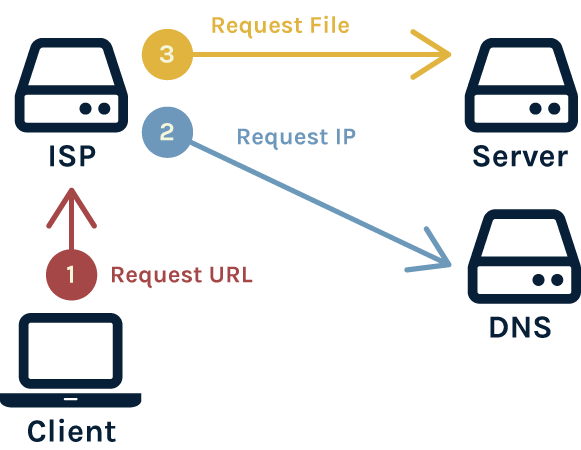
- How e.g.
http - Where e.g. codeavengers.com
- What e.g. /codecamp
Intro - part 1
Try Part 1 QuizIntro - part 2
Try Part 2 QuizSteps to Build a Website
8 Steps to Building a Website
1. Buy a domain:
A domain name is a URL people can type into their browser to get to your website.Things to consider when choosing a name
Is the name:
- Easy to remember
- Short
- Memorable
- Catchy
- Available
Top level domains (tld)
Identifies the most general part of the domain name in an Internet address and follows the last dot in a URL.
.com if you are going to be global. Local if it is for local only, e.g. trademe.co.nz
.org for a non-profit organisation
.govt for government
2. Checking if a domain is available:
Use a website that sells domain names, like GoDaddy. Search for the domain name that you wantYou will get the following responses:
- Domain name is taken by someone else. If you have a lot of money you may be able to contact them and make an offer.
- Domain name is for sale. Someone purchased the domain but now wants to sell it to you. The price can vary up to 100k plus.
- Domain name is available for purchase at the standard price of < $12.
3. Plan your website:
As part of planning your website you will have to decide:- The type of site : Decide what the focus and purpose is for your website eg. news/information, product, or reference sites. This will affect the rest of your planning
- Navigation : The navigation affects the hierarchy and architecture of the information on your site.
- Content : Plan and gather information and media which will make up the content with which you will build.
4. Build the website:
This requires you to work on one page at a time using your your knowledge of:- Design Basics: Using elements of good design on your web page
- HTML: HTML to build your web page. While there are programs you can use to create a web page that don't require knowledge of HTML, you will do better and have more flexibility if you actually know HTML.
- CSS: Use cascading style sheets to style your website and change the look to the way you want.
5. Buy web hosting:
A web host is a business who provides storage space for a website and all its web pages. You want to get it online so others can view it, so the first thing you will want to do is find a hosting provider. Web hosting can cost from nothing to millions of dollars depending on how much your site is used.6. Publishing your website
Get the pages you have designed up to the hosting provider you have chosen, through either the tools their service provides or with FTP (File Transfer Protocol) clients.7. Promote Your Website:
One way to promote your website is through website advertisements, but that can be very expensive. An inexpensive way of promoting your site is through search engine optimization or SEO. SEO is the process of affecting the visibility of your website or page in a search engine's results. This can be affected by how you build your web content. Things to consider:- The basics: title tag, meta description, internal links, header tags, etc.
- Including lots of high quality content. Blog posts, industry articles, tutorials and how to guides, infographics, videos, podcasts etc.
- Link building - get other sites to link to yours.
7. Monitor usage:
Tools like Google Analytics are used to monitor the statistics of a website's traffic and traffic sources.8. Maintain and update:
To keep your site going well and looking good, you need to continue testing and maintaining it even after it has been live for a while, because with new devices coming on the market and upgrades to browsers, your website may be affected. You should also continue working on content development of your site because the more content you provide the more visitors you will get.Tools For a Building Website
Web Browser
Choose a modern web browser that has good development tools to help make building web pages easier.



Text Editor
There are hundreds of good text editors out there.Online Editors (run in a web browser):
- Mozilla thimble (Teaching and learning)
- Cloud 9 IDE (for professionals)
- Code Avengers
Offline Editors:
- Brackets (best free editor)
- NotePad++
- Sublime Text 2 (best professional editor, approx $70 US)
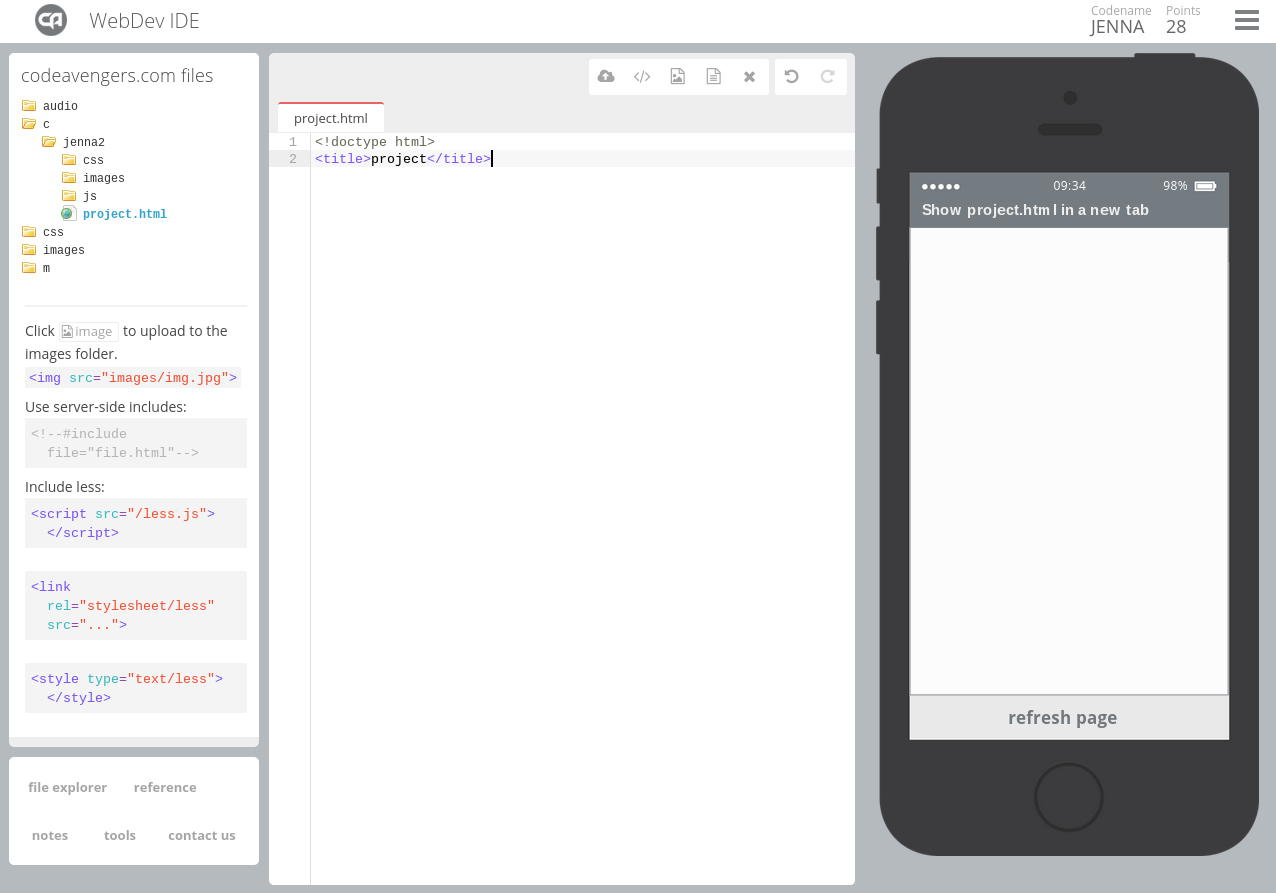
For this course we'll be using codeavengers.com an online text editor that allows you to see results as you type HTML and CSS.
Website builders:
Weebly
"It's surprisingly easy to create a unique website, blog or online store'" - weebly
Shopify (promo video)
Use Shopify to create your online store
CMS - Word Press
WordPress is free web software you can use to create a beautiful website or blog.
Cloud 9
Cloud 9 combines an online code editor with a full Ubuntu workspace in the cloud. It provides a live preview which enables you to interactively see what your web application looks like!

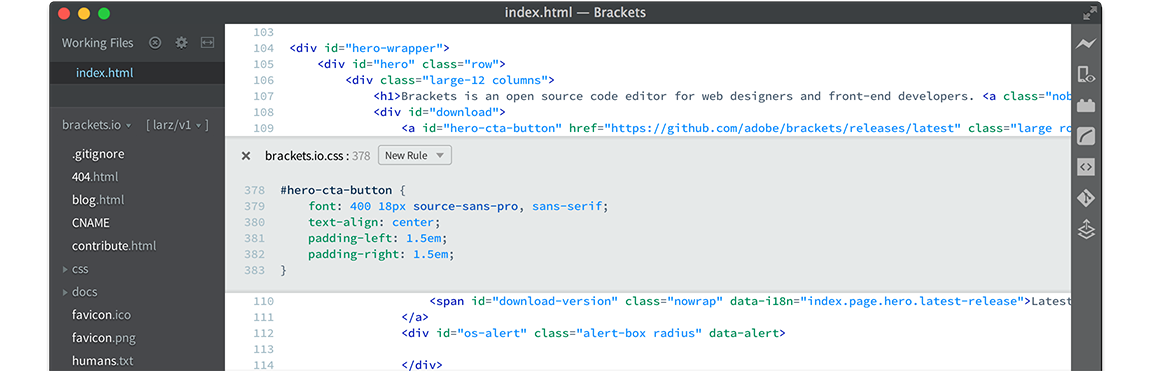
Brackets
With focused visual tools and preprocessor support, Brackets is a modern text editor that makes it easy to design in the browser.
Dream weaver
Use contextual code hinting to easily define fonts, colors, and gradients in your CSS, and drag and drop web-optimized images into your designs.
Why Learn to Code?
Since there are all these tools for easily creating websites without knowing HTML and CSS why should we learn to code?
Website builders are great if you are building a site that is similar to many other existing site. But if you want to build something new and high value, you need to know how to code.
I imagine that all of the top 500 websites in the world involved a lot of coding!
Check out this list if you think we're wrong!
What Lies Beneath?
The bones of a webpage
A web page is made of three main languages: HTML, CSS, JavaScript

HTML - the markup language (content)
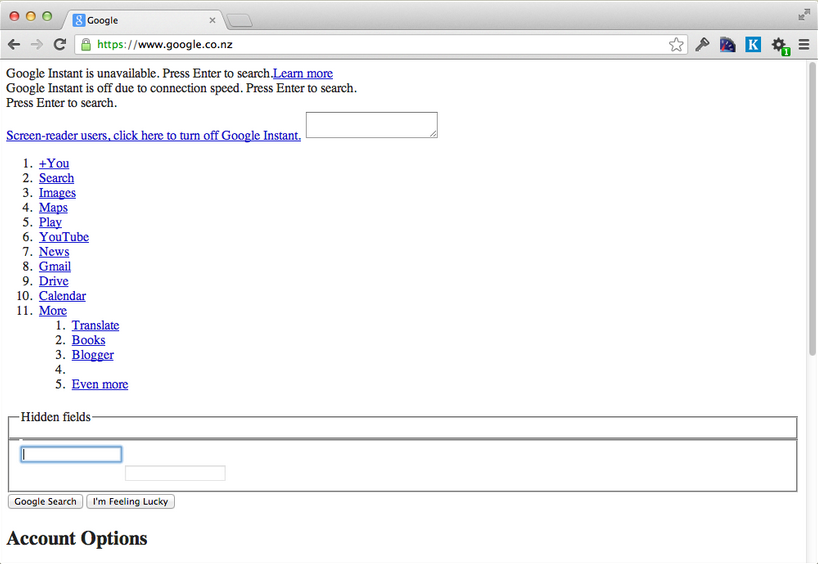
CSS - the style sheet language

JavaScript - the programming language
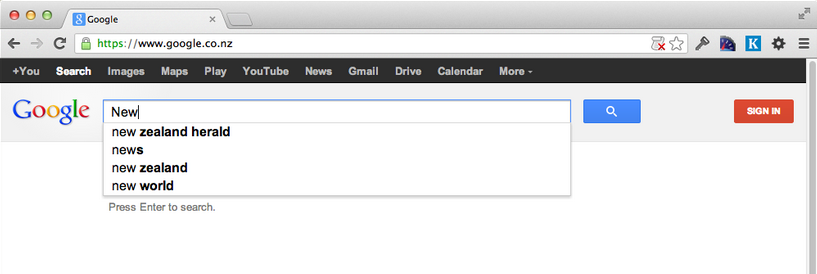
Read more here: http://www.beginnersguidetohtml.com/guides/css/styles/external-internal-inline-styles
History of HTML and CSS
HTML: first public document released in 1991; listed 18 tags for text only pagesHTML 1.1: released in 1992 as a draft document
HTML 2.0: published in 1995 as the first official HTML standard
CSS 1: first official spec published in 1996; iincluded support for specifying things like color, fonts, alignment, borders, margin and padding.
HTML 3.2: published in January 1997
HTML 4.0: published in December 1997; deprecated many HTML tags and attributes (such as font and center) that were used to style web pages, in favor of CSS.
CSS 2: published in 1998; added support for new capabilities like fixed, absolute and relative positioning, z-index, media types and new font properties such as shadow.
HTML 4.01: published in December 1999
XHTML: is a more restrictive form of HTML that conforms to the XML standard and was first published in 2000.
CSS 2.1: published in 2011
What's new in HTML5?
Development the HTML5 spec began in 2004 and was published as a working draft in January 2008. A final call for revisions to the standard was announced in May 2011. The W3C is aiming to publish complete spec in 2014.HTML5 includes new elements for:
- better structure:
<nav>, <article>, <header>, <footer>, <figure>, <figcaption>, <summary>, <section>etc - form handling:
<datalist>, <keygen>, <output> - drawing:
<canvas> - media:
<video>, <audio>, <source>, <embed>, <track>
HTML5 also incorporates new application programming interfaces (APIs) that can be used with JavaScript, such as:
- Canvas 2D API
- Timed media playback
- Web storage
- Drag and drop
There are also several APIs being developed by W3C that are not part of the official specs:
- Indexed database API
- File writer API - for writing local files
- Geo location
What's new in CSS3?
The CSS3 extends CSS2 and adds new functionality. The specification is divide into separate documents known as modules. The earliest CSS3 drafts were published in June 1999. CSS3 currently has over 50 modules, which are at different levels of stability and status. 4 of these have been published as formal recommendations:
- 2012-06-19 : Media Queries
- 2011-09-29 : Namespaces
- 2011-09-29 : Selectors Level 3
- 2011-06-07 : Color
Some of the features new to css include:
- Opacity property: set transparency for html elements
- RGBA and HSLA color models: use the alpha value to set the transparency of a color
- Border-radius property: given an element rounded corners
- WebFonts: can use any font on your site even if the user does not have it installed
- Transitions: add animated transitions of HTML elements using CSS
- Selectors: new ways to select CSS elements
Here are a couple simple examples of what can be done with CSS3
- Image gallery: http://thewebrocks.com/demos/targetgallery
- Accordian: http://demos.w3avenue.com/cross-browser-pure-css3-vertical-accordion/
Check out this site for some really cool examples of what is possible with some more complex CSS3: http://simurai.com/tagged/lab
The latest versions of all the popular browsers offer good support for most features of HTML5 and CSS3. See http://en.wikipedia.org/wiki/HTML and http://en.wikipedia.org/wiki/CSS for more details.