Image Manipulation 2
Editing Photos Using Pixlr
Intro to Pixlr
As part of level two we expect that you will be able to manipulate images by using color effects, layers, filters, pixel selections as well as correcting image distortion, noise, and drawing web graphics.Pixlr Editor (advanced)
A robust browser photo editor, for all your editing needs. Pixlr is one of the most full-featured imaging packages available, gives you a choice of how deeply you want to dive into your editing tasks. Pixlr provides a complete editing environment that's reminiscent of Photoshop .
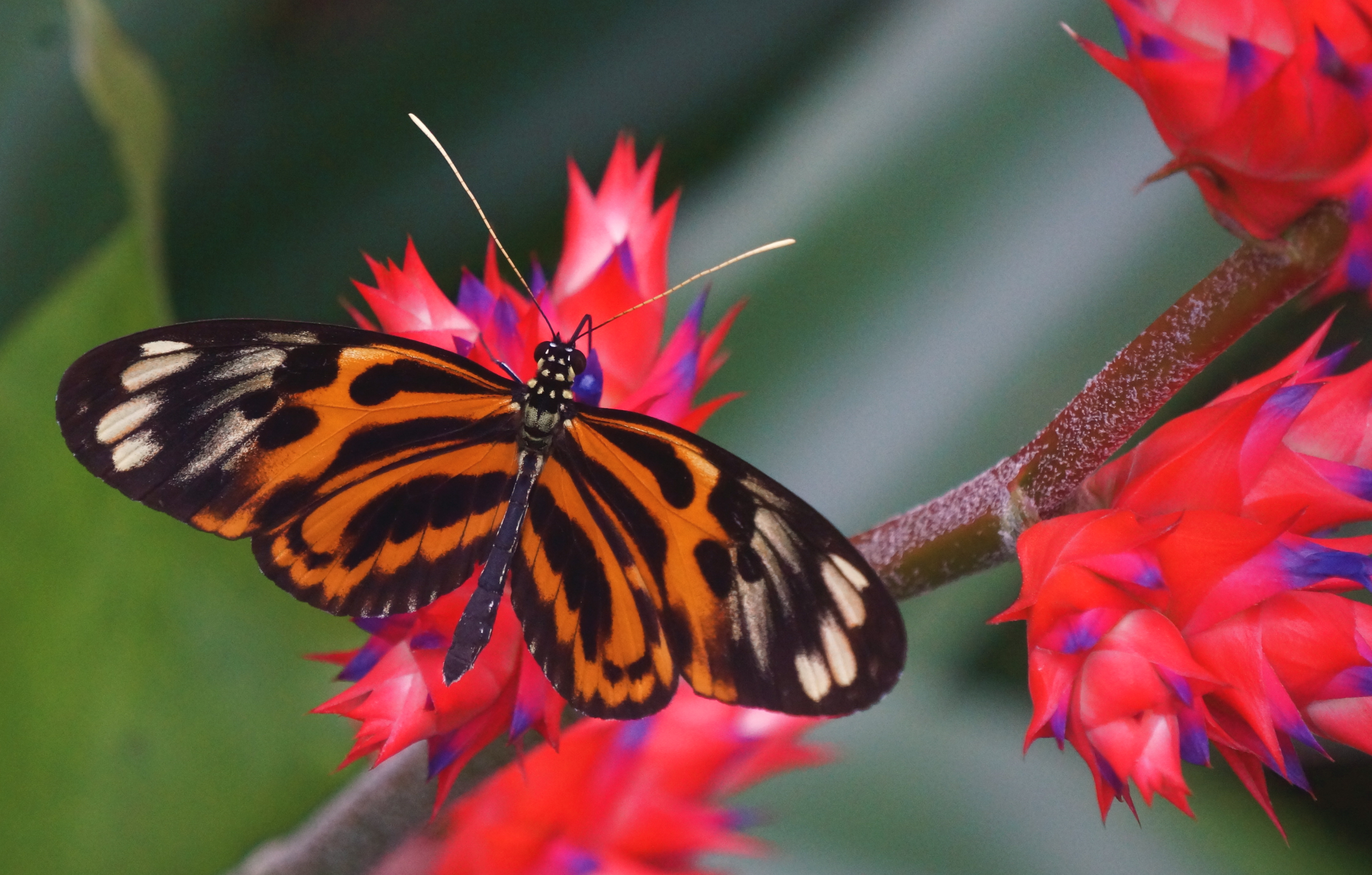
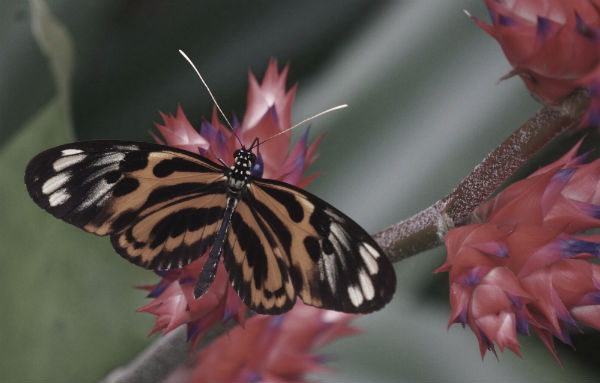
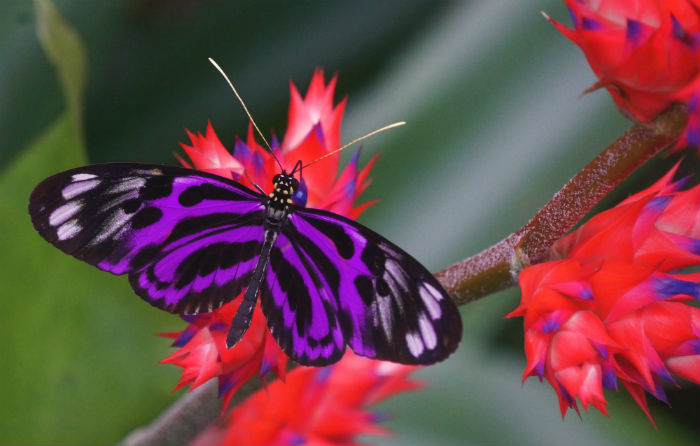
Our Image
We will use the image below to show how we would apply the following effects to our image:
- Hue & Saturation
- Color balance
- Levels
- Color replacement
- Color on Black and white
- Blur Background
- Water reflection(advanced)
Hue and Saturation
Under the Adjustment menu you will find the Hue/Saturation command which adjusts the hue (color), saturation (purity), and lightness of the entire image or of individual color components in an image.
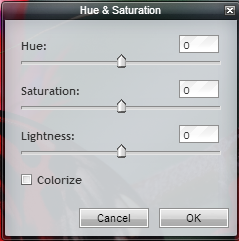
We can use the Hue slider to add special effects, to color a black and white image (like a sepia effect), or to change the range of colors in a portion of an image.
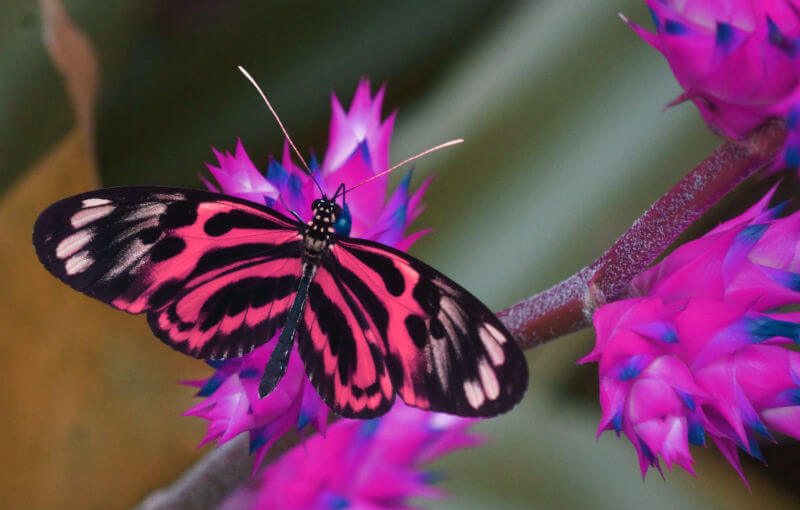
We can use the Saturation slider to make colors more vivid or more muted. For example, you could add color strength to landscape image by saturating the colors in it. Or, tone down a distracting color, like a vivid red sweater in a portrait.
We can use the Lightness slider with the other adjustments to lighten or darken a portion of an image. Take care not to use it on an entire image?this adjustment reduces the overall tonal range.
Color Balance Adjusting
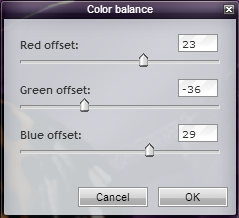
Under the Adjustment menu you will find the Color Balance command, which changes the overall mixture of colors in an image for generalized color correction. You can control the red offset, green offset and blue offset.

Levels
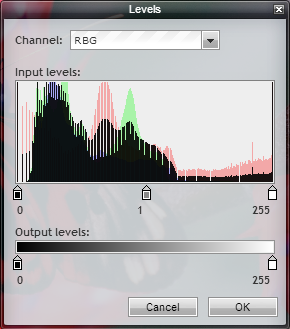
You use the Levels adjustment to correct the tonal range and color balance of an image by adjusting intensity levels of image shadows, midtones, and highlights. The Levels histogram is a visual guide for adjusting the image key tones.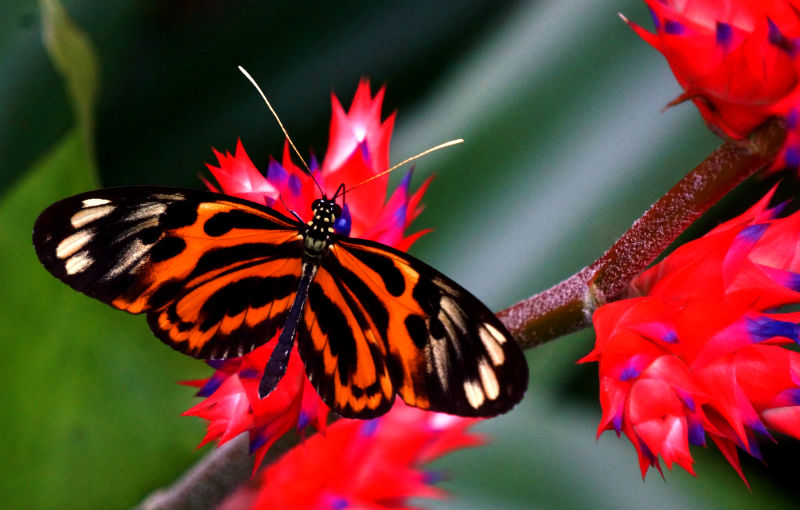
Use the color replace tool
- Select the color replace tool from the toolbar and mouse over your image. You'll see your brush, which you can resize if you want. You can use the color selector to pull up color palettes and choose a new color, or you can hold down the Alt key (Command key on Mac) to bring up the eyedropper and sample a color directly from your image.
- Adjust your tolerance if you think it's necessary. Start painting the new color onto the area you want to see change by clicking and holding your mouse while you paint. Un-click when you are done painting or want to reposition your mouse.
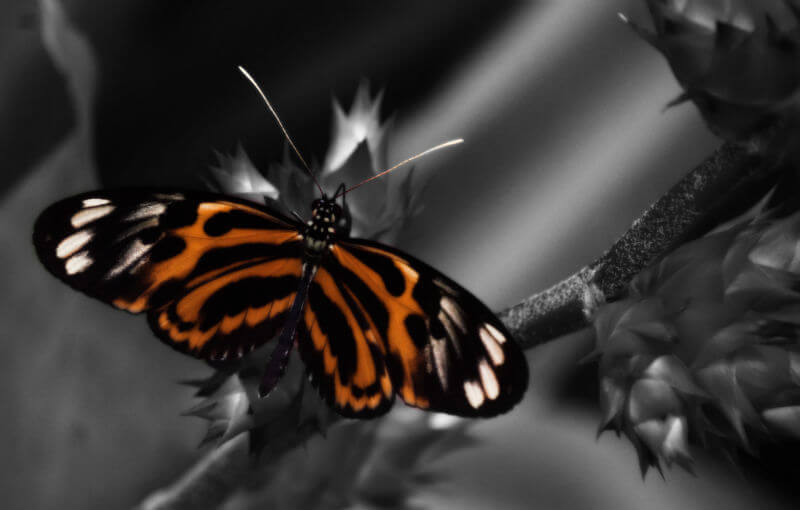
Color on Black and White Background
- Duplicate image layer in the layers panel to the right.
- Click on the layer top layer and go to Ajustments – Hue & Saturation
- Adjust the saturation slider to O
- Now use the eraser tool to erase the parts of the image you want to be colored and the image below will show through.
- Use ctrl-Z/command-Z (undo) and increase the eraser brush size where needed
- Once the image looks the way you would like, resize it to the size you need— image> image size
(note: you cannot resize an image to be bigger without it becoming blury)
Blur background
- Duplicate image layer in the layers panel to the right.
- Click on the layer top layer and go to filter > gaussian blur
- Adjust the amount of blur you wish to apply to the top layer.
- Now use the eraser tool to erase the parts of the image you want to be in focus.
- Use ctrl-Z/command-Z (undo) and increase the eraser brush size where needed
- Once the image looks the way you would like resize it to the size you need— image> image size
(note: you cannot resize an image to be bigger without it becoming blury)
Results:
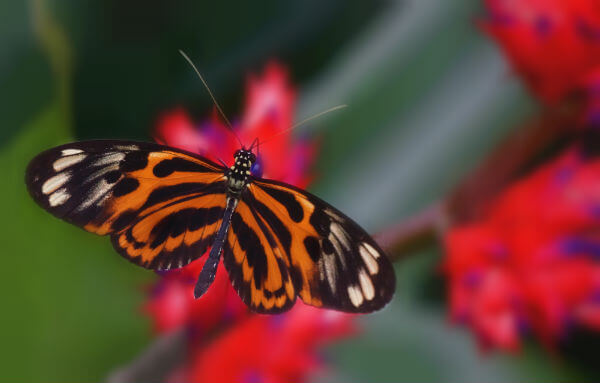
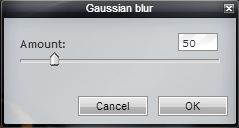
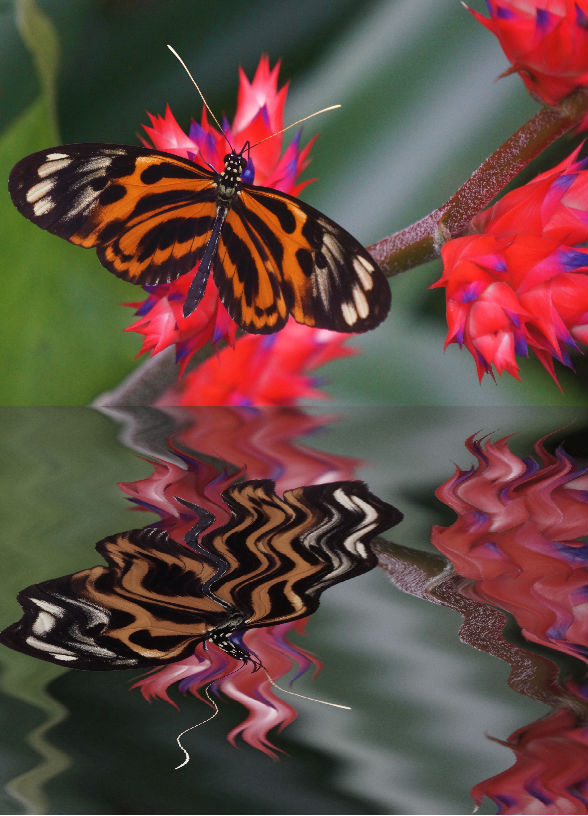
Image Reflection (Advanced)
- Duplicate the background layer
- Add more canvas space to the bottom of the document. (Image menu, canvas size)
- Flip the top layer vertically (Layer menu, flip vertically)
- Drag the flipped image to the bottom of the document
- Add water swirl filter to the top layer (Filter menu, water swirl)
- Reduce the saturation of the the waters reflection (Adjustment menu, hue & saturation)